 Double Cross: The True Story of the D-Day Spies by Ben MacIntyre is a bit of a companion piece to Operation Mincemeat which is another book by spies in WWII that I highly recommend. In Double Cross we learn all about the spies that England was running during WWII including the ones that Germany thought they were running but were actually English spies or completely fabricated by the English. It is a great book that tries to make sense of the twisting lives of spies, double and triple agents. Double Cross: The True Story of the D-Day Spies by Ben MacIntyre is a bit of a companion piece to Operation Mincemeat which is another book by spies in WWII that I highly recommend. In Double Cross we learn all about the spies that England was running during WWII including the ones that Germany thought they were running but were actually English spies or completely fabricated by the English. It is a great book that tries to make sense of the twisting lives of spies, double and triple agents. |
 Two Generals by Scott Chantler is a fascinating look at the life and memories of Law Chantler, the authors grand father, during his time in WWII. It's beautifully drawn and follows Law as his regiment takes part in D-Day. It's stories like this that make me very proud of Canada's accomplishments during WWII. Two Generals by Scott Chantler is a fascinating look at the life and memories of Law Chantler, the authors grand father, during his time in WWII. It's beautifully drawn and follows Law as his regiment takes part in D-Day. It's stories like this that make me very proud of Canada's accomplishments during WWII. |

Friday, December 7, 2012
Books I've Read This Week


Thursday, December 6, 2012
How to Get the Device's Phone Number Using PhoneGap Android

As always the code for this plugin is is GitHub at my TelephoneNumberPlugin repo. If you'd rather have a more detailed walk through please read on.
First up let's code our JavaScript interface which we will use to get the telephone number. We'll setup a new interface at "cordova/plugin/telephonenumber" to avoid name collisions. Then the rest is fairly boiler plate code where we declare and error object that we won't even use and finally provide a get method. When you call the get method you should provide a success callback. The success callback will be invoked with a string that will contain the devices phone number. If something goes wrong the failure callback will be invoked. I've extracted the execute method from TelephoneNumber.java which extends from the new CordovaPlugin interface. The method is fairly self explanatory. If the device has a phone number it will be returned. If not the error call back is invoked with the NO_TELEPHONE_NUMBER error code. If you try to call anything other than "get" on this class you'll get a INVALID_ACTION error. In order to use this plugin you'll need to include the telephonenumber.js in your HTML as a script tag: and add a line to res/xml/config.xml to tell the JavaScript side where to find your Java class: and if you don't already have READ_PHONE_STATE as a permission in your AndroidManifest.xml you will need to add it as well. Now you should be able to get your devices phone number. Here is some sample code that writes the phone number out to the console:
Wednesday, December 5, 2012
Speaking at Decembers OttawaJS

It should be a good time so if you can make it out it'd be great to talk with you.
Friday, November 30, 2012
Books I've Read This Week
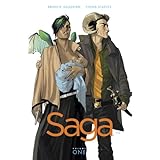 Saga Volume 1 by Brian K Vaughn and with art by Fiona Staples is pretty damn amazing. It is a science fiction epic where we follow Alana and Marko who are fleeing a war. The crux of the matter is that Alana and Marko are from opposite sides of a war between two different alien races. The powers that be from both sides want them apprehended before it is discovered that the two races can inter-breed. Oh yeah, the story opens up shortly before the birth of their first child. Saga Volume 1 by Brian K Vaughn and with art by Fiona Staples is pretty damn amazing. It is a science fiction epic where we follow Alana and Marko who are fleeing a war. The crux of the matter is that Alana and Marko are from opposite sides of a war between two different alien races. The powers that be from both sides want them apprehended before it is discovered that the two races can inter-breed. Oh yeah, the story opens up shortly before the birth of their first child.The pair are chased by a collection of odd characters including elements from the military of Alana's race as well as a number of bounty hunters which include the Stalk (a human spider hybrid) and The Will. Just image the original cantina scene from Star Wars: A New Hope writ large. Fiona Staples really gets a chance to play with character designs and sweeping alien vistas. The book would be well worth it from the art alone but you also get some great writing as well. I'm looking forward to picking up this series for years to come. Finally the six issue collection only has a $9.99 price which is an absolute steal. I really love that introductory price on Image Comics first trade paper backs. |
 The $100 Startup: Reinvent the Way You Make a Living, Do What You Love, and Create a New Future by Chris Guillebeau. I admit I'm intrigued by entrepeneurs. I'm super impressed by the guts one must have in order to strike out on their own. The thing this book tries to address is taking away the fear of taking that risk. Guillebeau dives into fifty case studies of small entrepreneurs who've started their business with as little as $100 and now make a full time living off of that business. The $100 Startup: Reinvent the Way You Make a Living, Do What You Love, and Create a New Future by Chris Guillebeau. I admit I'm intrigued by entrepeneurs. I'm super impressed by the guts one must have in order to strike out on their own. The thing this book tries to address is taking away the fear of taking that risk. Guillebeau dives into fifty case studies of small entrepreneurs who've started their business with as little as $100 and now make a full time living off of that business.The key piece that I take away from this book is that anyone can do it and you don't need to risk your financial security in order to do it. However, the book also tells you that the way to succeed is to do something that you are not only good at but passionate about. That's where I count myself lucky as my day job is working with open source software and playing with mobile phones. It doesn't get much better than that for me. |
Wednesday, November 28, 2012
Building a HTML Options Menu for PhoneGap Android
Okay, so if you want to use this component you will need to download OptionsMenu.js from the above link, place it in your assets/www folder then add the script tag after cordova.js in your HTML file.
Next you will want to create you menu. For my purposes I've used the settings/help example like the previous two posts on menus. To do it you add some code into your to the method that is listening for the "deviceready" event. Something like this:
and that will produce a menu that looks like this:

But let's dig in a bit of that call to create a new OptionsMenu. The magic is in the JSON object passed to the construction. Obviously the "id" is used to set the ID of the div that will hold the menu items. Then the items array will contain all of the menu items you want to display. Each menu item has three properties, image is a url the icon you want to display in the item, label which is the text which is shown under the image and finally action which is a JavaScript function that is called when the item is tapped.
So that's it, you have a fully functioning HTML/CSS/JS only options menu just by including an additional JavaScript file. Like I said the code is up on github and it is not perfect. Feel free to submit issues as I'm going to pick away at making it more robust after I take a mini vacation.
Update: So I realized the menu really should support multiple rows just like a real Android options menu so I just pushed an update to my code on Github to support it. Instead of an array being sent to the constructor of the OptionsMenu you send a multi-dimensional array like so:
and then it looks like this:

You will also notice the icons are a bit smaller. I'm checking for the size of the screen and adjusting the icon width and height accordingly.
Friday, November 23, 2012
Books I've Read This Week
 Wheat Belly by William Davis is another book in a series of books that are blaming the obesity epidemic on carbohydrates, in this case specifically wheat. I'm not a Doctor myself but the author William Davis is and he has the science and real world experience to back up his claims. Personally what I have noticed is that by limiting the amount of processed carbs I eat that my weight is way down, over 10 lbs this year. That may not seem like a lot but I'm not carrying around a lot of extra weight to begin with so maybe Dr. Davis is on to something here. Wheat Belly by William Davis is another book in a series of books that are blaming the obesity epidemic on carbohydrates, in this case specifically wheat. I'm not a Doctor myself but the author William Davis is and he has the science and real world experience to back up his claims. Personally what I have noticed is that by limiting the amount of processed carbs I eat that my weight is way down, over 10 lbs this year. That may not seem like a lot but I'm not carrying around a lot of extra weight to begin with so maybe Dr. Davis is on to something here.Other books that are similar in natured include The G.I. Diet, The Paleo Solution and even The 4-Hour Body. |
 Invincible Iron Man - Volume 7: My Monsters by Matt Fraction is where this series goes off the rails for me. I really enjoyed the first 6 volumes but this is where I suggest folks stop. At the end of volume 6 we could see that the Mandarin was going to be the big baddie going forward. So in volume 7 it opens up with a Mandarin story written by Kelly Sue Deconnick which is the main reason to pick up this book. The Mandarin has kidnapped a famous director so that he can make a movie based on his life story. Of course the Mandarin wants to paint himself in the most flattering light but the director is looking for more "authenticity". Invincible Iron Man - Volume 7: My Monsters by Matt Fraction is where this series goes off the rails for me. I really enjoyed the first 6 volumes but this is where I suggest folks stop. At the end of volume 6 we could see that the Mandarin was going to be the big baddie going forward. So in volume 7 it opens up with a Mandarin story written by Kelly Sue Deconnick which is the main reason to pick up this book. The Mandarin has kidnapped a famous director so that he can make a movie based on his life story. Of course the Mandarin wants to paint himself in the most flattering light but the director is looking for more "authenticity".After that we are treated to a re-hash of the origin of Iron Man and some alternative future story which I'd rather just forget I'd even read. |
Friday, November 16, 2012
Getting the create Command to Work on PhoneGap 2.2.0 Android
From what I understand most of us Cordova core developers use a Mac as our main machine. Now I don't want to and won't start an OS holy war since there is a very good reason why we do that, you can't do iOS without a Mac and the tools for Android and BlackBerry development will run on a Mac so it makes sense for those of us who have to jump back and forth to be using a Mac. However, we've really dropped the ball in explaining what the proper setup needs to be when you are on a PC. So that's why I'm writing this blog post from my old Windows laptop that I dusted off so I can feel your pain.
Required Software
Go ahead and download and install those packages if you haven't already. I'll wait. I'm not up to anything else right now. But please pay attention to where you install these packages as you'll need those paths later.
Oh good, you're back.
Oh good, you're back.
First problem
Once you navigate to the phongeap\lib\android\bin directory the getting started guide tells you to run the following command:
./create <project_folder_path> <package_name> <project_name>but that is not accurate on a Windows system as it won't be able to find the create command. The line should be:
create <project_folder_path> <package_name> <project_name>Second problem
Once you do that you probably will see this error:

So basically and unhelpful error telling you that you are missing a package. We'll need to make sure the following commands can be run from the command prompt. Let's start by testing if the command line can find java.exe first. So type:
javainto the command line. If you see something like this:

then you will need to modify your PATH environment variable so that the script can find Java. First you'll need to discover where your JDK is installed. I can't tell you where that is so I hope you took my advice and noted where the installer placed those files. Armed with the path to your Java Development Kit do the following:
- From the Desktop, right-click My Computer and click Properties.
- Click Advanced System Settings link in the left column.
- In the System Properties window click the Environment Variables button.
- Select the PATH variable from the System variables section.
- Select the Edit button.
which means you should have a dialog something like this:

This is where you will add the JDK\bin directory to your PATH. Notice you need to point to the bin directory where commands line java and javac are kept. For example "c:\jdk\bin". Also make sure to separate different path entries using a ";". Now you need to click OK then OK once more. After that close your command prompt and start a new one so the updated PATH variable will be used. In the new command prompt run:
java
once again and you should see something like this:

Now the create script will be able to find java. Unfortunately you'll need to repeat the process for the following commands:
- javac
- ant
- adb
- android
If you get the "blah" is not a recognized internal or external command error message for any of the above you'll need to add it to the PATH.
Third problem
The environment variable JAVA_HOME may be set incorrectly. Make sure that this variable is set and it refers to the root directory of your JDK and not JRE. The create.js script looks for %JAVA_HOME%\bin\javac.exe and if it can't find it there will be an error.
Fourth problem
Don't use '-' in your package name. The '-' is not a valid character in a Java package name.
Bad: ./create ./name com.my-company.name name
Good: ./create ./name com.mycompany.name name
Third problem
The environment variable JAVA_HOME may be set incorrectly. Make sure that this variable is set and it refers to the root directory of your JDK and not JRE. The create.js script looks for %JAVA_HOME%\bin\javac.exe and if it can't find it there will be an error.
Fourth problem
Don't use '-' in your package name. The '-' is not a valid character in a Java package name.
Bad: ./create ./name com.my-company.name name
Okay, I hope that helps everyone. I'm going to make the error messages more descriptive while I'm on my PC for the upcoming 2.3.0 release.
Subscribe to:
Posts (Atom)